Version used for this post : CRM 2013 Online trial
Lets consider a scenario.
We have a custom entity called Systems. And it has 2 option sets.
1. Category- Values - Software, Hardware
2. Sub Category - Values - Business App, OS, Desktop and Laptop.
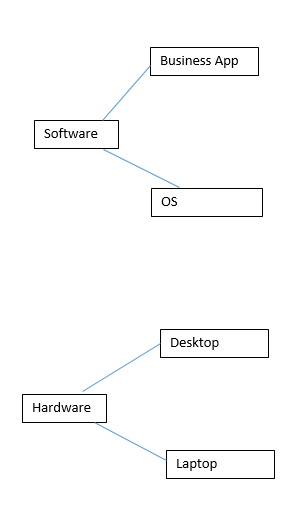
The option set values are dependent as shown in the below diagram.
For instance, when we select Software we should only see Business App and OS.
Firstly we need to understand the steps to be done for this functionality. From a helicopter view,
- Option sets should be defined with necessary values.
- XML Config file ( Here we define the dependency, sample is given below. We need to upload this file as a webresource)
- SDK.DependentOptionSet.js ( Could be found in SDK\SampleCode\JS\FormScripts . We need to upload this file as a webresource)
- Js function calls to be done.
1. Lets have a quick look at the option sets.
Category:

Sub Category:

2. The next step is to configure the xml file. Its based on the option set values as shown below.
Here is the contents of our XML file - SystemsOptionSetConfig.xml
<DependentOptionSetConfig entity="new_system" >
<ParentField id="new_category"
label="Category">
<DependentField id="new_subcategory"
label="Sub Category" />
<Option value="100000001"
label="Software">
<ShowOption value="100000000"
label="Business App" />
<ShowOption value="100000001"
label="OS" />
</Option>
<Option value="100000000"
label="Hardware">
<ShowOption value="100000002"
label="Desktop" />
<ShowOption value="100000003"
label="Laptop" />
</Option>
</ParentField>
</DependentOptionSetConfig>
Here is the contents of our XML file - SystemsOptionSetConfig.xml
<DependentOptionSetConfig entity="new_system" >
<ParentField id="new_category"
label="Category">
<DependentField id="new_subcategory"
label="Sub Category" />
<Option value="100000001"
label="Software">
<ShowOption value="100000000"
label="Business App" />
<ShowOption value="100000001"
label="OS" />
</Option>
<Option value="100000000"
label="Hardware">
<ShowOption value="100000002"
label="Desktop" />
<ShowOption value="100000003"
label="Laptop" />
</Option>
</ParentField>
</DependentOptionSetConfig>
Entity name, field names and values should be defined correctly. Also structure is important as the SDK dependent option set js works based on this.
Here Parent field is Category and the dependent field is Sub Category. Dependency is defined in terms of Option and Showoption.
Here Parent field is Category and the dependent field is Sub Category. Dependency is defined in terms of Option and Showoption.
3. We need to double check the values, as the dependency is purely defined in the above xml.
4. Lets upload the xml config file. Please note that the name of the webresource xml is "new_SystemsOptionSetConfig.xml". After save operation, we need to publish the webresource.
 5. We need to upload the SDK.DependentOptionSet.js ( located in SDK\SampleCode\JS\FormScripts ) as a webresource. The next step is to save and publish this webresource. Please note that the name of this js file is new_SDK.DependentOptionSet.js. This js file is the core of this functionality.
 6. Next step is to configure form. So lets navigate to System entity form.We need to add our core js code to the Form Library. as shown below.

7. Function call on the OnLoad event is the next step. We need to click on the Add button found on the Functions section. So here the function is SDK.DependentOptionSet.init and parameter is our xml config name "new_SystemsOptionSetConfig.xml"

8. So our Form onload event looks like this.

9. As the next step we need to configure the function call on the OnChange event of the parent field ( here its Category)
For instance, When we change the Category value, the Sub Category should be populated accordingly.
So double click on the field found on the form design. And click on the Add button as shown below. In this case, we do not need to add Form library as it was added earlier.

10. Here the function call is
SDK.DependentOptionSet.filterDependentField
And parameters are "new_category","new_subcategory"

lets say Okay and press Okay. And our final step is Save the form and publish the form.
11. During testing it was found there was a small syntax error in the SDK.DependentOptionSet.js file. (One curly bracket was extra. So we need to comment it. Please note that the SDK was Downloaded on 12/10/2013.) Hopefully this will be resolved in the upcoming SDK release. For our convenience, its explained here. This change could be done either before saving it as webresource OR by editing the webresource. The change is highlighted below.

12. And here is our final apple pie.


13 . In future , if we have some change in the option set values or if we need to append some option set values, all we need to do is amend the option set field in CRM and then update the xml configuration webresource file accordingly. No change required in the js file.


7. Function call on the OnLoad event is the next step. We need to click on the Add button found on the Functions section. So here the function is SDK.DependentOptionSet.init and parameter is our xml config name "new_SystemsOptionSetConfig.xml"

8. So our Form onload event looks like this.

9. As the next step we need to configure the function call on the OnChange event of the parent field ( here its Category)
For instance, When we change the Category value, the Sub Category should be populated accordingly.
So double click on the field found on the form design. And click on the Add button as shown below. In this case, we do not need to add Form library as it was added earlier.

10. Here the function call is
SDK.DependentOptionSet.filterDependentField
And parameters are "new_category","new_subcategory"

lets say Okay and press Okay. And our final step is Save the form and publish the form.
11. During testing it was found there was a small syntax error in the SDK.DependentOptionSet.js file. (One curly bracket was extra. So we need to comment it. Please note that the SDK was Downloaded on 12/10/2013.) Hopefully this will be resolved in the upcoming SDK release. For our convenience, its explained here. This change could be done either before saving it as webresource OR by editing the webresource. The change is highlighted below.

12. And here is our final apple pie.


13 . In future , if we have some change in the option set values or if we need to append some option set values, all we need to do is amend the option set field in CRM and then update the xml configuration webresource file accordingly. No change required in the js file.
